Kiosk mode
What it is used for
Kiosk mode lets a shared device (a tablet at a workstation, a wall-mounted screen near a production line, a kitchen iPad) act as a sign-in point for any staff member who needs to record work, without giving everyone their own device or asking them to sign in and out with email and password.
Each staff member gets a short numeric PIN. They tap it at the kiosk to identify themselves, do their work, and tap out. The next person can sign in immediately.
Who can set it up
Any signed-in organisation user — Staff, Manager or Admin — can turn on kiosk mode from their account menu on the device that will become the kiosk. Each person manages their own kiosk PIN; there is no separate step where an admin issues PINs to others.
Set up a kiosk device
- Sign in to OpusHub on the shared device.
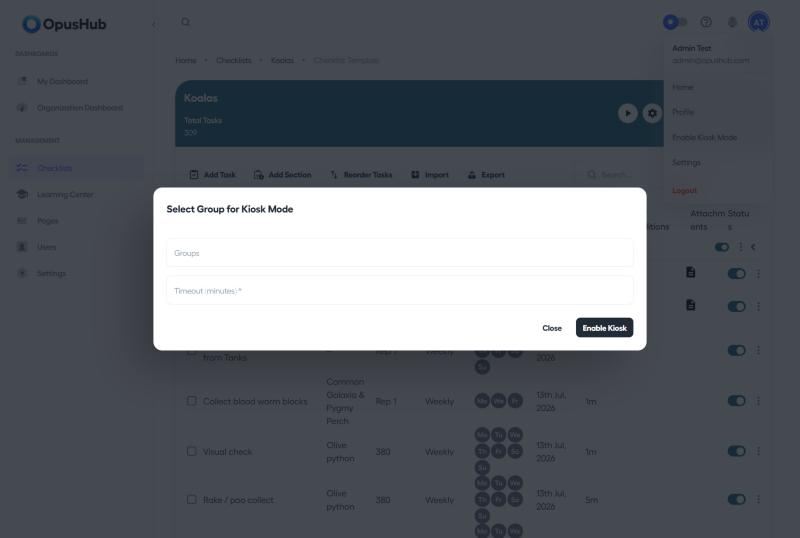
- Open your account menu and select Enable Kiosk Mode.
- Choose which groups the kiosk should show users from. Leaving this blank is fine — the kiosk falls back to showing every user in the organisation.
- Set a timeout, then select Enable Kiosk.
- Leave the device on the kiosk login screen (
/kiosk/login). Staff sign in with their PIN.
The kiosk login screen itself also has a Show all users toggle, so whoever is standing at the device can switch between the selected groups and the full organisation list without re-enabling kiosk mode.
Set your kiosk PIN
Each user sets or changes their own PIN — there's no admin action needed to issue one.
- Open Profile > User Settings > Kiosk PIN.
- Set or update your PIN.
- Keep it private, the same way you would a password. If you think someone else knows it, change it.
Sign in and out at the kiosk
- Tap the PIN at the kiosk login screen.
- Complete tasks, take notes, follow SOPs as normal.
- Tap the sign-out button when finished, or use the auto-timeout that the device enforces.
Important notes
- All work done at the kiosk is attributed to the staff member who entered their PIN. The audit trail is the same as a normal sign-in.
- PINs should not be reused or shared. If a staff member leaves the organisation, remove their user account — see Users — rather than relying on them to change their own PIN.
- A kiosk device only sees the organisation it was signed in to.
- If a kiosk device's session expires or is revoked, it automatically falls back to the normal sign-in screen instead of getting stuck on a blank kiosk page.
:::info Screenshot placeholder Add screenshot: kiosk login screen with the PIN pad (requires signing out into an active kiosk session to capture). :::