Assignments
What it is used for
Assignments deliver Learning Centre content to specific users or groups and track who has completed what.
Who can access it
Staff complete assignments in My Assignments. Managers and admins create, review and manage assignments in Assignment Management.
Create an assignment
- Open the Learning Centre item you want to assign.
- Open the Assign or share option.
- Choose who receives the assignment:
- selected users
- selected groups
- all users
- Set a due date.
- Choose completion steps:
- Mark as Read. Staff confirm they have read the content.
- Quiz. Staff complete an embedded quiz, scored against your pass mark.
- Manager Sign Off. A nominated evaluator signs off.
- Add evaluators when manager sign-off is required.
- Send or save the assignment.
A notification is sent to recipients when the assignment lands.
Complete an assignment
- Open Learning Center.
- Select My Assignments.
- Open the assigned item.
- Read the content or complete the module sections.
- Complete any quiz or sign-off steps that follow.
- Check that the assignment status updates from
Not startedtoIn revieworCompletedas required.
Send a reminder
Managers and admins can nudge staff who haven't completed an assignment yet, from Assignment Management:
- Open Assignment Management and use the row menu's Remind Outstanding Users to bulk-remind everyone who hasn't completed that assignment.
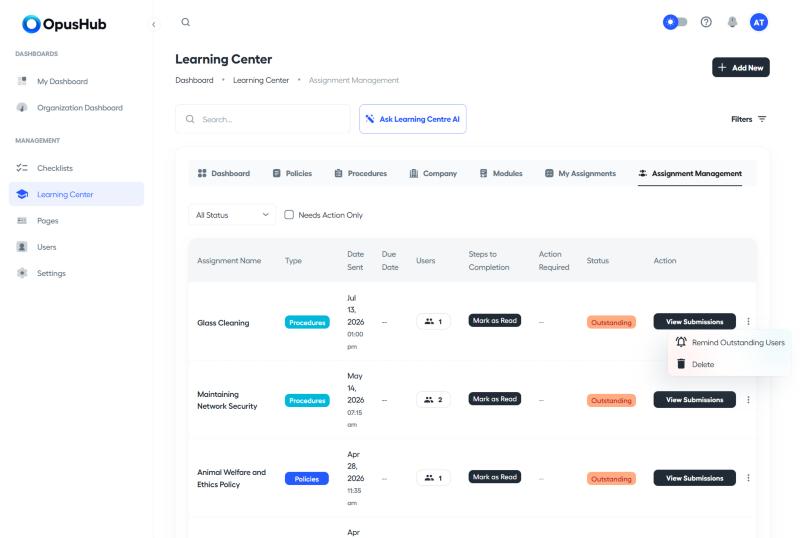
- Or open the assignment's document report or submission view and use Send Reminder on an individual user's row to remind just that person.
- Recipients get a notification that takes them straight to the assignment. The report's activity feed logs a Reminder Sent entry with who was reminded.
You can also turn on automatic reminders when creating the assignment, so outstanding recipients are nudged on a repeating schedule leading up to the due date, without a manager having to remind them manually.
Assignment statuses
- Not started. No work has begun.
- In review. Submitted, awaiting evaluator sign-off.
- Completed. Approved and counted.
- Rejected. Evaluator sent it back for the staff member to redo.
- Superseded. A new version has been issued and replaces this one.
Important notes
- Each quiz has its own pass mark. Staff can retake a quiz as many times as needed to pass.
- Overdue assignments are flagged on dashboards so managers can chase.
- The assignment record is preserved when documents are revised, so an audit trail remains.
- For shared-device workflows, staff can complete assignments at a kiosk after signing in with their PIN. See Kiosk mode.
:::info Screenshot placeholder Add screenshot: assignment dialog with due date, recipients, evaluators and completion steps; and the My Assignments tab with statuses. :::