Sort, reorder and columns
What it is used for
The sort page lets you reorder sections and tasks in a template, and choose which columns to display. The same column preference is used by the template-edit view, so toggling a column once applies everywhere.
Who can access it
Users who can edit a checklist template can open the sort page.
Reorder tasks and sections
- Open a checklist template.
- Open Sort from the template menu.
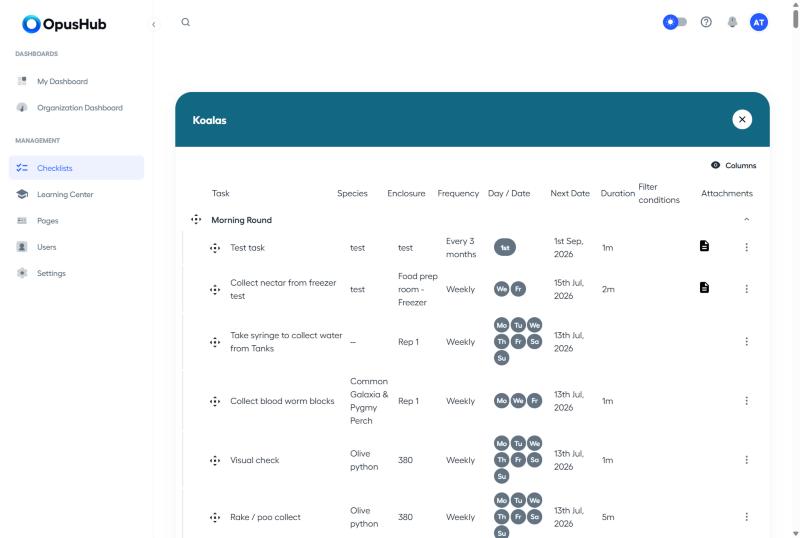
- Drag a task by the handle on the left to move it within a section or into a different section.
- Drag a section header to reorder sections.
- Use the gap zones between sections to drop a task into a new position.
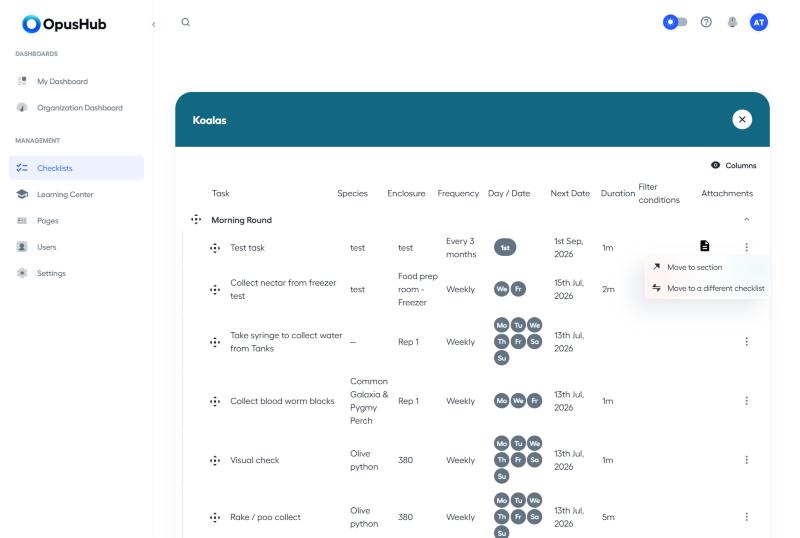
- Use the row menu and Move to section when you need to send a task to a section that is currently off screen.
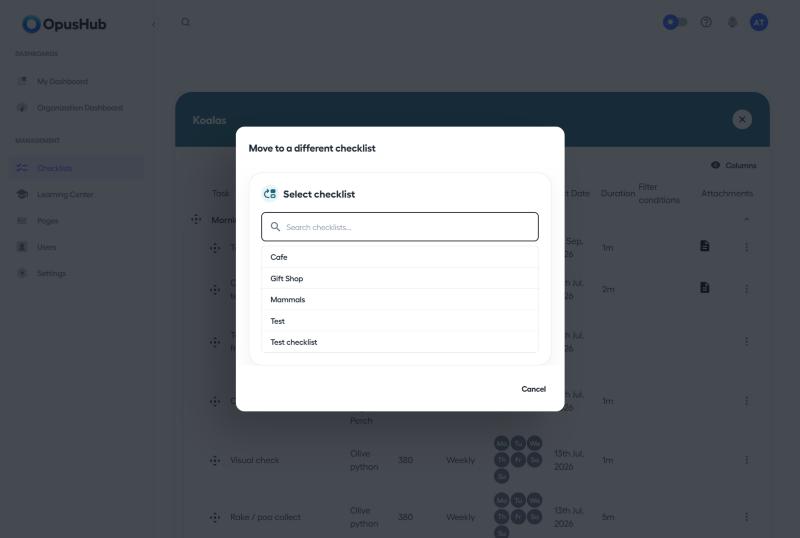
- Use the row menu and Move to a different checklist to relocate a task to another template entirely. Search for the destination checklist, select it, and confirm — the task (with its settings) is moved out of the current template and into the one you chose.
When you start a drag, the floating preview now shows the full row content including the task name and the values for every visible custom field column. That makes it easier to see which row you are moving on a long checklist.
Choose visible columns
- Open the Columns popover at the top of the sort page (also available on the template edit page).
- Toggle a column on or off.
- Your selection is saved against your user account and follows you between the sort page and the template edit page.
Custom field columns start in the state set on the template
(Visible on checklist per custom field). Your saved Columns
preferences override that default for your own view.
Important notes
- Reordering tasks updates the template only. Active runs already opened do not reorder retroactively.
- On large templates, dragging may feel slightly slower than on small ones. Performance work is ongoing.
- The status column does not appear on the sort page because there is no task status outside of an active run.