Active checklists
What it is used for
An active checklist is a live run of a template. This is where staff do the actual work.
Who can access it
Users can open active checklists when they have access to the underlying template and to the organisation. Closing or editing depends on role and on the template's settings.
Open a checklist and complete work
- Open Checklists.
- Select the Active tab.
- Open the active checklist you want to work on.
- Review the title, sync status, progress bar, tag filters and task list.
- Complete tasks. See Completing tasks.
- Use the history icon to view a previous run of the same checklist.
- Use checklist notes or per-task notes when extra context is needed. See Notes and history.
- Close the checklist when it is complete and your role allows it.
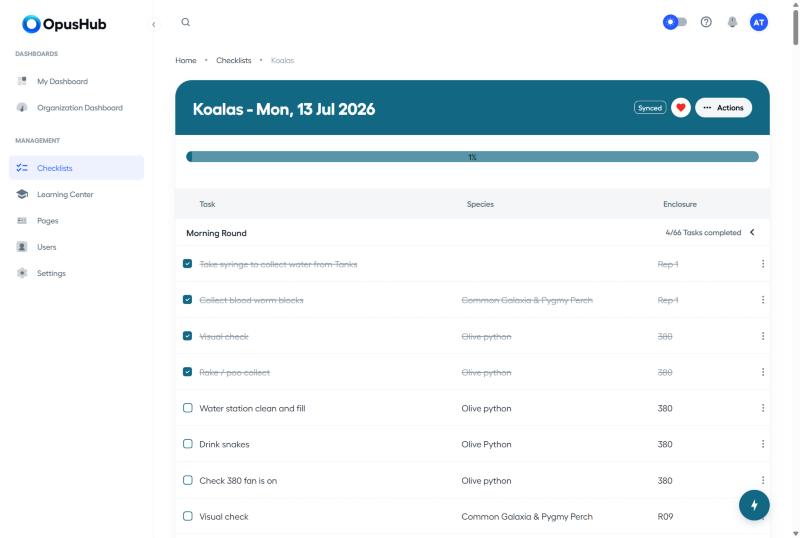
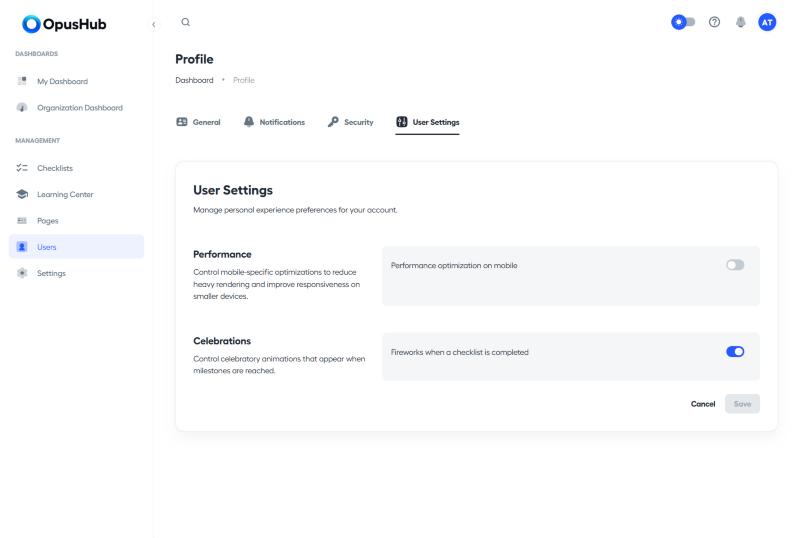
When a run reaches 100%, OpusHub asks whether you want to close it. You can cancel and leave it open. A short fireworks celebration plays when you hit 100%; turn it off from Profile > User Settings > Celebrations if you'd rather not see it.
Actions menu
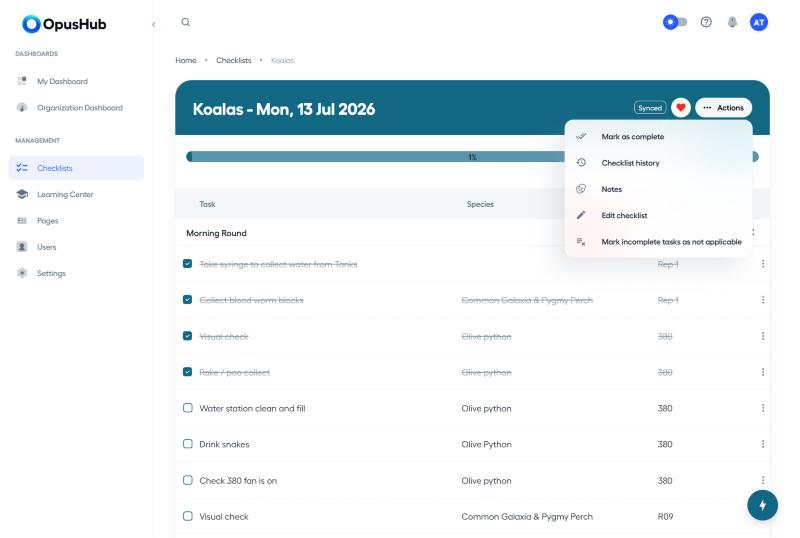
The Actions menu (kebab icon, top right of an active checklist) gathers the checklist-level actions in one place:
-
Mark as complete / Reopen checklist — close or reopen the run, depending on your role and the template's close settings.
-
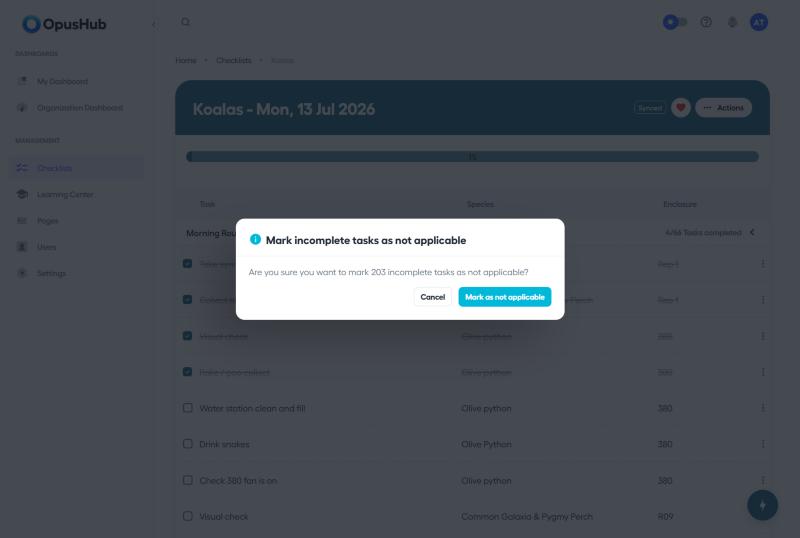
Mark incomplete tasks as not applicable — bulk-marks every pending, applicable task on the run as Not Applicable in one go, after you confirm. Useful when a run is being closed out and the remaining open tasks genuinely don't apply this time, instead of marking each one individually. See Completing tasks for the per-task version.
-
Checklist history — jump to a previous run of the same checklist.
-
Notes — add or review checklist-level notes.
-
Edit checklist — edit this instance or the underlying template.
-
Bulk assign — assign multiple tasks to users at once, when the template allows task assignment.
-
Add new task / Reorder tasks — available in edit mode.
Sync status
Active runs show one of three states next to the title:
- Synced. All your changes are saved to the server.
- Syncing. Changes are being uploaded.
- Offline. No connection. Edits are queued locally and uploaded when the device reconnects.
When you try to leave a page that has unsynced changes, OpusHub warns you first. Stay on the page until the indicator returns to Synced if you don't want to risk losing work.
Latest checklist breadcrumb
From a template, the breadcrumb Latest checklist link takes you to the most recent run for that template, based on when the run was opened.
Quick-access tools (mobile)
A floating action button on the active checklist page gives you fast access to:
- Hide completed — collapse tasks you've already finished so the list only shows what's left.
- My tasks only — filter the list down to tasks assigned to you.
- Next task — jump straight to the next task that still needs attention, expanding and scrolling to it automatically.
On smaller screens, the Actions menu also includes a Standard / Compact view toggle. Compact view narrows the visible custom field columns so more of the task list fits on screen.
Important notes
- Closed checklists become read-only. You cannot complete tasks on a closed run.
- If mobile performance optimisation is enabled (Profile > User Settings), sections may load as you scroll into them instead of all at once.
- Real-time updates: edits made by other users on the same run appear on your screen without a refresh.